
# Dead Key Typing Test: Calibrate AltGr and Accent Input for Real WPM
A dead key typing test measures how much time and error rate you add when composing accented characters with dead keys or AltGr layers. If you type fast in plain ASCII text but slow down in multilingual writing, run this diagnostic first: benchmark plain text, benchmark accent heavy text, log composition errors, then tune layout and repeat settings so composed characters register consistently.
This guide gives you a repeatable test protocol, a calibration checklist, and a decision table you can apply on any desktop setup.
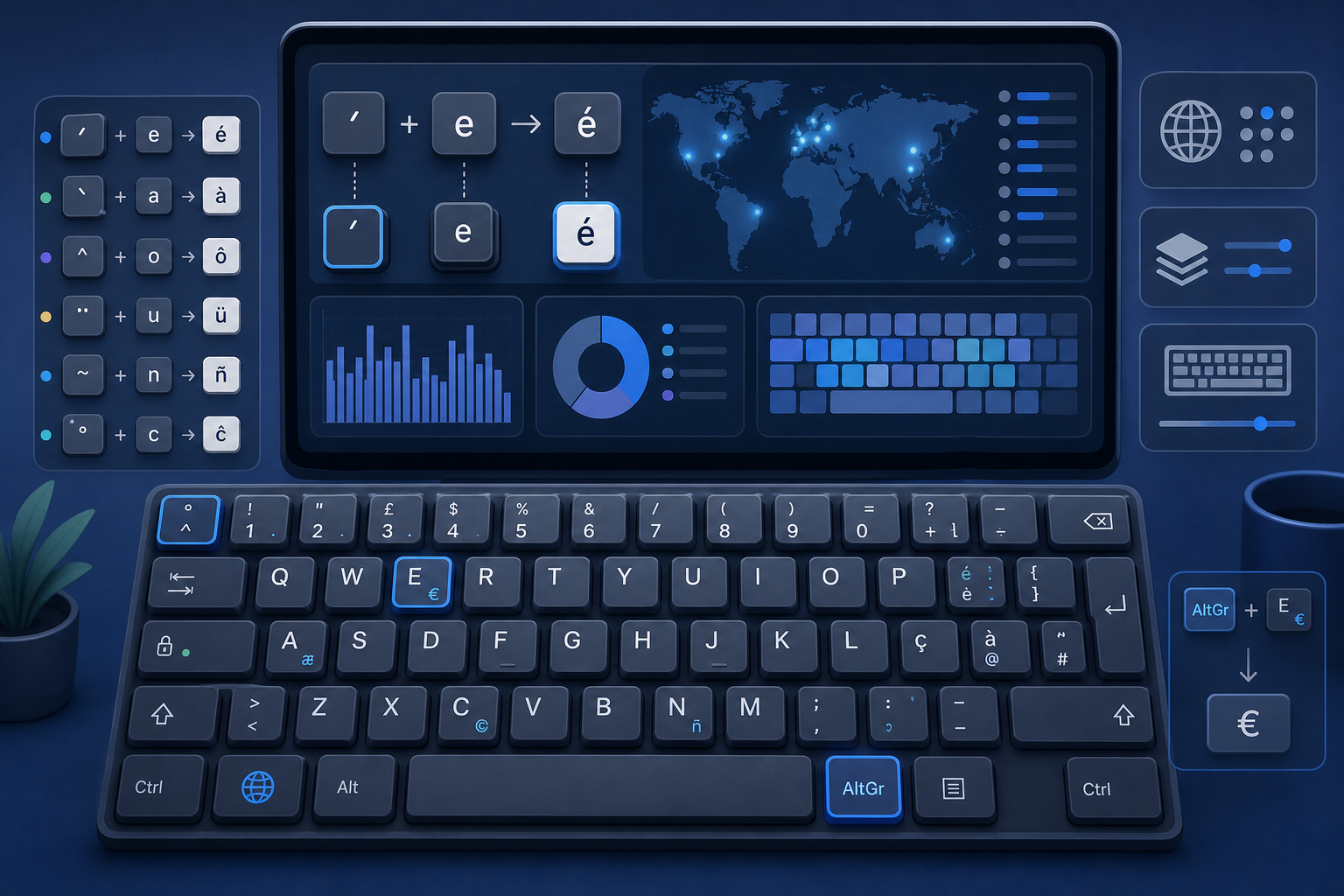
# What a dead key typing test actually measures
A dead key does not print a character on first press. It modifies the next keypress to compose a combined character. Example: pressing an acute accent dead key then e produces é.
That flow introduces two risks:
- Timing risk: the second key arrives outside the expected composition window.
- Mapping risk: layout state or app behavior changes the output sequence.
In a typing test context, those risks appear as hidden latency and correction bursts. Your raw WPM may look fine on simple passages, while multilingual passages show lower effective output.
Authoritative references for composition behavior and event handling:
- W3C UI Events specification for keyboard event semantics: https://www.w3.org/TR/uievents/ (opens new window)
- MDN KeyboardEvent key values and dead key behavior notes: https://developer.mozilla.org/en-US/docs/Web/API/KeyboardEvent/key/Key_Values (opens new window)
- Apple platform guide for creating and selecting keyboard input sources: https://support.apple.com/guide/mac-help/write-in-another-language-on-mac-mh35853/mac (opens new window)
- Unicode combining marks reference for composition model context: https://www.unicode.org/charts/PDF/U0300.pdf (opens new window)
# Why multilingual typists lose measurable WPM
Most typing plans optimize straight line text entry with standard letters and punctuation. Multilingual text adds composition steps, layout switching, and symbol layers. Those extra transitions increase cognitive load and key sequence variance.
Common failure patterns:
- Pressing the base letter before the dead key state is active.
- Double pressing dead keys and getting duplicated marks.
- Mixing AltGr symbols and accent composition in one phrase.
- Switching app focus and losing expected layout state.
Each failure triggers a correction loop that costs seconds across a session. If you track only best run WPM, you miss it. If you track effective WPM with error recovery, the gap becomes visible.
Use these TypeTest references to keep measurement consistent:
# 20 minute dead key typing test protocol
# Step 1: Create two matched passages
Build two 200 to 250 character passages with similar word length and punctuation density.
- Passage A: plain Latin text without accents.
- Passage B: same topic and similar structure with accented words.
Keep semantics close so the key difference is composition load, not vocabulary difficulty.
Example pair:
- A: "Cafe menu updates require clear role ownership and weekly review cycles."
- B: "Café menu updates require clear rôle ownership and weekly review cycles."
# Step 2: Run a baseline block
Complete three 60 second runs with Passage A.
Record:
- Gross WPM
- Accuracy percentage
- Backspace count if available
- Subjective rhythm rating from 1 to 5
Use median values, not peak values.
# Step 3: Run a composition block
Complete three 60 second runs with Passage B under the same conditions.
Record the same metrics plus:
- Composition misses per run
- Wrong accent output count
- Unintended plain letter output count
# Step 4: Compute the composition gap
Calculate:
- WPM drop = baseline median WPM minus composition median WPM
- Accuracy drop = baseline median accuracy minus composition median accuracy
- Composition error rate = composition misses divided by total accented characters
Interpretation guide:
- Gap under 5 percent with stable accuracy: configuration is acceptable.
- Gap 5 to 12 percent: tune layout and repeat settings.
- Gap above 12 percent: layout workflow or hardware layer likely needs redesign.
# Step 5: Re test after one change
Change one variable at a time:
- Keyboard layout variant
- Repeat delay
- Repeat rate
- Modifier key assignment
- App input method setting
Re run the same two passage blocks and compare medians.
# Decision table: fix path by symptom
| Symptom during composition runs | Likely cause | Highest value first change | Verification signal |
|---|---|---|---|
| Accent mark appears twice | Repeat delay too short for dead key | Increase key repeat delay one step | Duplicate marks drop across three runs |
| Base letter appears without accent | Dead key state not retained long enough or wrong key order | Slow first composition sequence and confirm layout mapping | Composition miss count falls by at least 30 percent |
| Wrong symbol appears with AltGr combos | Layout mismatch between OS and physical keyboard | Re select exact layout variant for hardware language | AltGr error count approaches zero |
| Performance drops only in one app | App specific input handling or shortcut conflict | Disable conflicting app shortcut or change input mode | App specific accuracy aligns with browser baseline |
| Rhythm collapses after one miss | Correction strategy introduces long pauses | Use immediate single backspace correction rule | Recovery time per miss decreases |
This table turns scattered errors into targeted experiments.
# Calibration checklist for dead key reliability
Use this checklist before serious practice blocks.
- Confirm active keyboard layout in OS settings.
- Confirm physical keyboard legend matches selected logical layout.
- Verify dead key sequence for top 10 accented characters you use most.
- Verify AltGr symbol layer for your normal writing and coding symbols.
- Set repeat delay to reduce accidental duplicated dead keys.
- Keep repeat rate moderate until composition accuracy is stable.
- Disable or remap app shortcuts that intercept AltGr sequences.
- Run one 60 second smoke test passage with accents before training.
If two items fail, stop training and fix configuration first.
# Layout specific notes that improve transfer
# US International style layouts
US International layouts provide broad accent coverage but rely heavily on dead key sequences. They work well when you memorize a small set of composition pairs and maintain consistent finger timing.
Practical tip: prioritize high frequency pairs first, such as acute plus vowels, then expand to less frequent marks.
# Dedicated language layouts
Dedicated layouts for French, Spanish, Portuguese, and other languages often reduce composition steps for common characters. They can improve speed in language specific work but may increase friction for mixed language workflows.
Practical tip: benchmark language dominant tasks separately from mixed tasks before deciding.
# Custom firmware layers
Custom firmware layers can map direct accented characters to accessible positions, reducing composition overhead. This can help advanced users who alternate between prose and symbol heavy technical text.
Practical tip: test discoverability and consistency before rolling custom layers into daily work.
# Common mistakes that hide real progress
# Mistake 1: Comparing unlike passages
If accented and non accented passages differ in complexity, your WPM gap is noisy. Use matched passages with similar structure.
# Mistake 2: Chasing peak run numbers
Peak runs hide composition instability. Median of three runs shows whether changes actually improve reliability.
# Mistake 3: Changing three settings at once
Multiple simultaneous changes make causality unclear. One variable per test cycle gives interpretable results.
# Mistake 4: Ignoring app level behavior
Input behavior can vary across browsers, editors, and chat apps. Validate in the app where you do real work.
For passage design discipline and timing structure, these related guides help:
# A weekly plan to improve dead key speed without accuracy loss
Run this for two weeks.
Day 1 and Day 4:
- Baseline block on plain passage, three runs.
- Composition block on accent passage, three runs.
- Apply one configuration change if composition gap exceeds 5 percent.
Day 2 and Day 5:
- Five minute composition drill on top 20 accented words you actually type.
- One mixed language paragraph test.
- Log composition misses and recovery time.
Day 3 and Day 6:
- App specific validation in your editor or communication tool.
- Verify AltGr symbols and dead key sequences in real workflow snippets.
Day 7:
- Repeat full benchmark protocol.
- Compare medians with Day 1.
- Keep the change only if WPM and accuracy both improve or stay stable.
This plan prioritizes transfer to actual writing output instead of isolated burst speed.
# When to switch layout instead of tuning settings
Switch layouts when all three conditions hold:
- Composition gap remains above 12 percent after two controlled tuning cycles.
- Error types stay concentrated on the same character pairs.
- Your main workload uses a language with frequent accented characters.
Tune settings instead of switching when:
- Gap is moderate and trending down.
- Errors are mostly duplicate accents from repeat timing.
- Mixed language workload makes full layout switching costly.
A controlled switch decision avoids endless micro tweaks.
# Final implementation template
Copy this template into your notes and fill it each test day.
- Date:
- Layout:
- App tested:
- Baseline median WPM:
- Composition median WPM:
- Accuracy gap:
- Composition miss rate:
- Single change applied:
- Result after re test:
- Keep or revert:
Small records create clear trend lines. Clear trend lines help you reach stable multilingual typing speed.
# Conclusion
A dead key typing test gives you direct evidence on where multilingual typing performance leaks happen. The key method is simple: compare matched plain and accent passages, measure median gaps, and apply one controlled change at a time. With a checklist driven setup and symptom based decisions, you can reduce composition misses and recover practical WPM in real writing tasks.
If you track these metrics in your normal TypeTest routine, your speed gains will transfer across languages instead of staying limited to simplified text.