
# Keyboard Ghosting Test: Find Rollover Limits That Reduce Real WPM
A keyboard ghosting test checks whether specific key combinations fail when pressed together. If your typing speed rises in short bursts but collapses in real writing, rollover limits can be the cause. The practical workflow is simple: measure blocked key combinations, identify conflict zones, and adjust layout habits or hardware settings so common trigrams register consistently.
This guide gives you a repeatable method, a conflict log template, and a decision checklist you can use before you buy a new keyboard.
# What a keyboard ghosting test measures
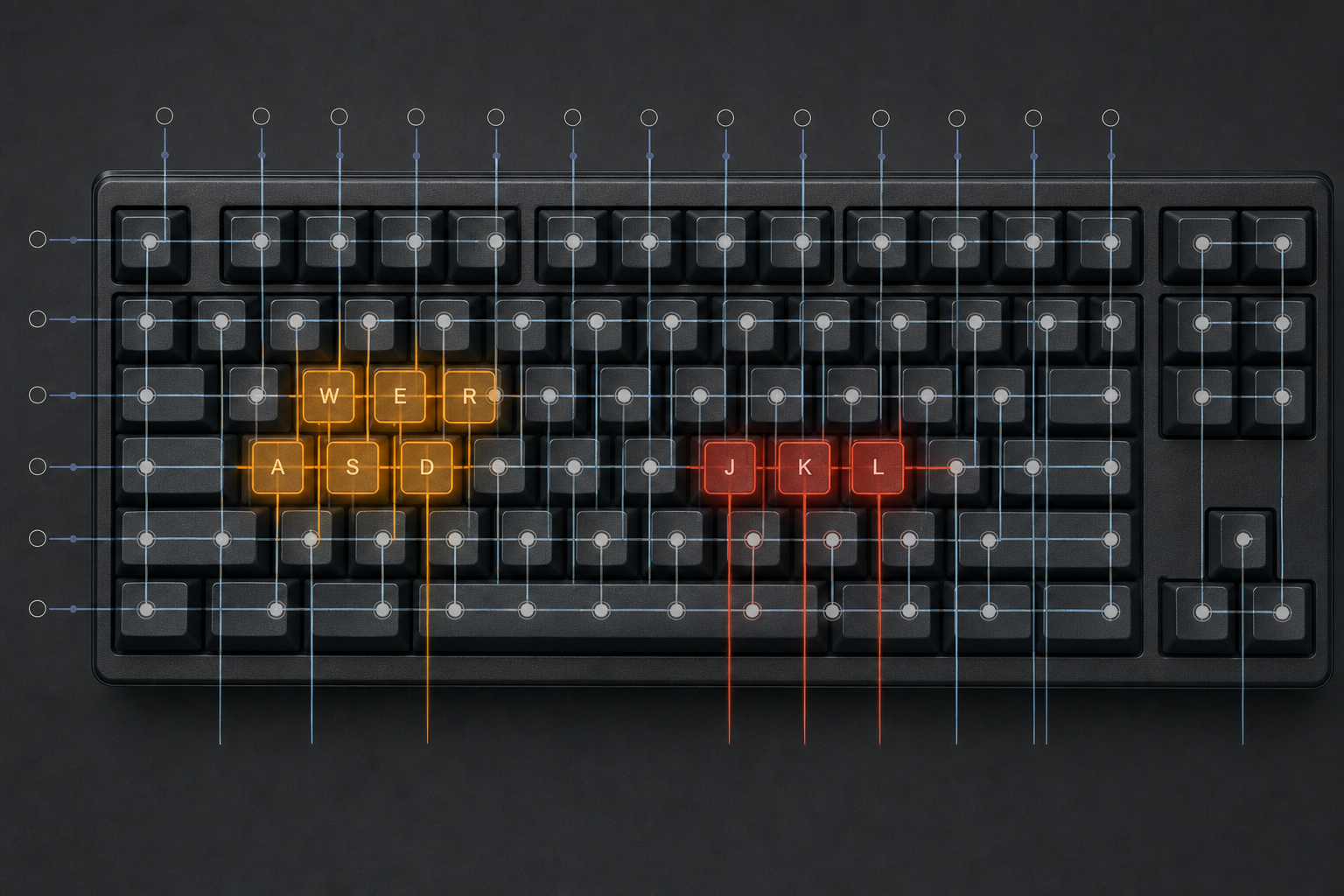
A keyboard ghosting test measures input registration under simultaneous keypresses. Most typing sessions involve overlapping key down and key up events. You rarely press one key, release it fully, then move to the next key. Real typing contains chord-like transitions, especially around same-hand letter sequences and modifier use.
Three terms matter:
- Ghosting: a pressed key does not register because of matrix limitations.
- Masking: one key blocks another key from being detected.
- Rollover: the number and pattern of keys that can register together.
The USB HID Usage Tables define how keyboards report key usage IDs to hosts, while firmware decides scan timing and conflict handling. See the HID usage specification from USB-IF for the protocol layer: https://usb.org/document-library/hid-usage-tables-15 (opens new window).
On desktop systems, the operating system input stack then processes the resulting events. Linux documents this in its input subsystem guide: https://www.kernel.org/doc/html/latest/input/input.html (opens new window).
If you want a visual refresher on matrix behavior and why certain rows and columns collide, the How Keyboards Work explainer is a useful companion: https://howkeyboardswork.com/ (opens new window).
# Why rollover limits affect WPM even when tests look fine
Many users run a 60-second typing test and see acceptable averages, then miss key sequences in normal writing. That happens because generic tests do not always stress your personal conflict patterns.
Common examples:
- Left-hand overlaps such as WER, ASD, or QWE during acceleration.
- Modifier combinations when using shortcuts inside writing flow.
- Laptop row transitions where shallow switches increase near-simultaneous presses.
If your keyboard blocks one letter in a common trigram, your correction cycle adds delay. The delay appears as:
- Immediate typo.
- Error recognition after one or two words.
- Backspace burst.
- Re-entry with lower rhythm.
This pattern lowers effective output. If you track only peak WPM, you miss it. If you track sustained accuracy plus correction frequency, the impact becomes visible.
For baseline and repeatability, pair this guide with your normal measurement loop in TypeTest:
- Type Speed Test Baseline Routine (opens new window)
- WPM Typing Test Confidence Intervals (opens new window)
- Typing Accuracy Test Thresholds (opens new window)
# Keyboard ghosting test workflow you can run in 20 minutes
# Step 1: Prepare a controlled test setup
Use one browser, one keyboard, one layout, and one repeatable posture. Keep these fixed during one session:
- Layout: QWERTY, Colemak, or Dvorak.
- OS repeat delay and repeat rate.
- Polling settings if your keyboard software exposes them.
- Same text size and window focus behavior.
Record these in a short header so future tests stay comparable.
# Step 2: Build a conflict candidate list
Start with sequences you actually type often. Use:
- Frequent trigrams from your language.
- Common shortcut transitions for your workflow.
- Adjacent-row sequences where your misses happen.
A good first pass is 30 to 50 sequences, split by hand pattern:
- Left-hand dominant
- Right-hand dominant
- Cross-hand transitions
- Modifier plus letter combinations
# Step 3: Run each sequence as an overlap drill
For each sequence, press with realistic overlap. Do not exaggerate into a gaming-style full chord unless your normal typing does that. You want realistic failure points.
Use three passes:
- Slow overlap
- Normal overlap
- Fast overlap
Mark any dropped letter, swapped order, or missing event.
# Step 4: Log failures as matrix zones
Group failures by physical area, not only by letter. This is where actionable insight appears. If W, E, and R combinations fail in a zone, you can change finger timing or keyboard settings for that zone.
# Step 5: Validate fixes with a short production test
After each adjustment, run a 5-minute writing sample and a standard TypeTest run. Compare:
- Accuracy
- Backspace rate
- Effective WPM
If effective WPM improves while peak WPM stays flat, your fix still worked. Throughput is the operational target.
# Decision checklist: Is this a keyboard issue or a technique issue?
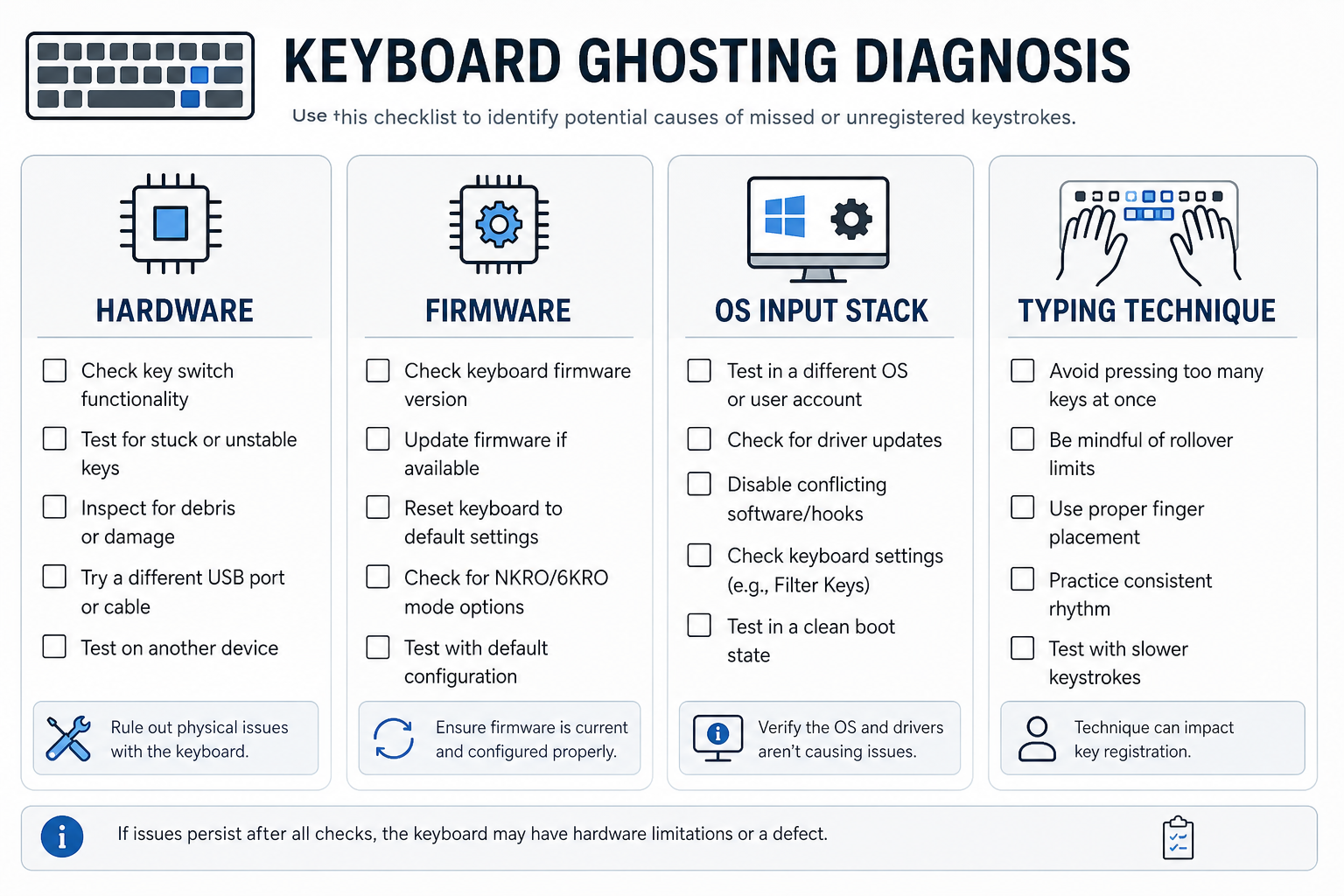
Use this checklist before replacing hardware.
- Failures repeat on the same key clusters across sessions.
- Failures occur on multiple websites and apps.
- Failures remain after disabling remappers and macro tools.
- Failures appear at normal typing speed, not only extreme mashing.
- Failures drop when you slightly reduce overlap timing.
Interpretation:
- 4 to 5 checked: matrix or firmware behavior is likely the main factor.
- 2 to 3 checked: mixed cause; training and settings can recover most losses.
- 0 to 1 checked: technique and pacing are likely dominant.
# Rollover triage table for practical fixes
| Symptom pattern | Likely cause | Fast test | Practical fix |
|---|---|---|---|
| Same 3-letter cluster drops one key | Matrix conflict zone | Repeat trigram 30 times at normal overlap | Re-map workload away from zone or adjust key timing |
| Failures appear only with modifiers | Shortcut chord complexity | Test with and without modifier in same phrase | Split shortcut timing or change shortcut bindings |
| Misses spike on laptop keyboard only | Shallow travel plus scan behavior | Compare external keyboard on same OS | Use external board for long writing sessions |
| Errors happen only at peak speed | Timing overshoot | Run lap method with controlled pace | Train pace ceiling, then ramp overlap |
| Random misses across many keys | Software/input stack conflict | Safe mode or clean boot test | Remove remappers, update firmware, inspect drivers |
For pace control during validation, this method helps isolate speed ceiling effects:
- Timed Typing Test Pacing Strategy (opens new window)
- Timed Typing Test Lap Method (opens new window)
# How to design a conflict log template
Use a compact log you can update in real time. Suggested fields:
- Date
- Keyboard model and firmware version
- Layout and OS
- Sequence
- Speed band (slow, normal, fast)
- Error type (drop, order swap, duplicate)
- Frequency out of 30 attempts
- Fix applied
- Re-test result
A log with frequency counts gives you trend visibility. If a sequence falls from 9 of 30 failures to 1 of 30 after a fix, you have objective improvement.
QMK documentation explains matrix scanning and firmware behavior for many custom keyboards, which is useful when interpreting these trends: https://docs.qmk.fm/ (opens new window).
# External factors that can mimic ghosting
Before concluding hardware limits, screen for adjacent causes.
# Input method editors and accessibility filters
IME layers and accessibility features can alter event timing. Test once with default keyboard input pipeline.
# USB path and hub behavior
Some unstable hubs add intermittent input issues. Move the keyboard to a direct port and re-run the same sequence set.
# Browser and focus behavior
A tab losing focus during testing can look like ghosting. Use one focused window and disable noisy background utilities during the measurement pass.
# Driver and firmware mismatch
Vendor utilities can apply profiles inconsistently after updates. Confirm active profile and firmware version before testing.
# How to turn ghosting results into typing gains
Raw diagnostics matter only if they lead to better output. Use this conversion loop:
- Identify top 5 failing sequences by frequency.
- Apply one change only, either timing, keybind, or hardware profile.
- Re-run conflict test for those 5 sequences.
- Re-run a standard 60-second TypeTest and a 5-minute writing block.
- Keep the change only if accuracy and effective WPM both improve.
This process keeps you from chasing cosmetic speed gains. It also avoids overfitting to one benchmark passage.
If you are switching layouts, treat ghosting and adaptation as separate variables. This comparison framework helps keep those variables clean:
# When to upgrade hardware
Upgrade when three conditions hold:
- Conflict zones affect common sequences in your daily writing.
- Training and timing adjustments fail to reduce errors over multiple sessions.
- A comparison keyboard removes the failures under identical test conditions.
If you only type short messages, the practical impact can stay low. If you write long documents, coding sessions, or live notes, reduced correction churn usually pays for the change quickly.
For a before and after setup protocol, this post can anchor your measurement process:
# A compact weekly plan
Use this one-week plan to lock in results.
Day 1:
- Build sequence list.
- Run baseline conflict log.
Day 2 to Day 4:
- Apply one fix per day.
- Re-test top conflict sequences.
Day 5:
- Run two TypeTest sessions at fixed duration.
- Record effective WPM and accuracy.
Day 6:
- Run one real writing task for 20 minutes.
- Record correction friction notes.
Day 7:
- Compare baseline to current results.
- Keep only fixes that improved production output.
This structure keeps your effort focused on measurable gains rather than endless hardware tuning.
# Conclusion
A keyboard ghosting test gives you diagnostic clarity when your WPM and real writing output diverge. By mapping conflict zones, logging failure frequency, and validating each change against practical writing tasks, you can remove hidden input bottlenecks without guesswork. Run the workflow once, keep the conflict log weekly, and use TypeTest benchmarks to verify that each adjustment improves usable typing speed.