
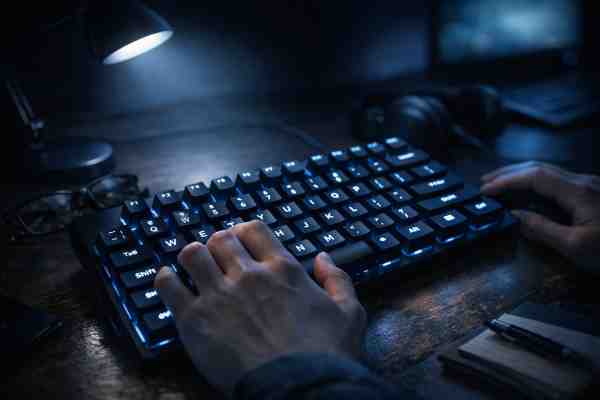
# Typing in Low Light: Keyboard Visibility Tips
We've all been there—midnight inspiration strikes, the office lights have dimmed to create ambiance, or you're working late into the evening when your typing speed suddenly plummets. Your fingers fumble across the keyboard like they've never met before, your error rate spikes, and you're convinced you've somehow forgotten how to type. The culprit? Poor lighting. While most people blame themselves for these moments of typing ineptitude, the real villain is often the environment you're typing in. Let's explore how to maintain your peak typing test performance even when the sun has abandoned you.
# The Dark Side of Typing: Why Low Light Matters
Here's a fact that might surprise you: your typing speed isn't just about muscle memory and finger dexterity. Your eyes play a crucial role in maintaining consistent WPM during typing tests and everyday work. When you're typing in low light conditions, your eyes work harder to track key locations, distinguish between similar keys, and maintain focus on your screen and keyboard simultaneously. This cognitive load translates directly into slower typing speeds and increased error rates.
Research in typing performance has consistently shown that environmental factors—particularly lighting—can reduce typing speed by 15-30% in some cases. That's the difference between a respectable 70 WPM and a mediocre 50 WPM. For anyone serious about improving their typing speed or maintaining consistent performance on typing tests, lighting is non-negotiable.
The problem becomes even more pronounced if you use a mechanical keyboard with darker keycaps or minimal lighting. Without proper illumination, finding that elusive semicolon key becomes an archaeological expedition rather than a simple keystroke.
# Understanding the Lighting Problem
Low light affects typing performance in multiple ways. First, there's the direct effect: you literally cannot see your keyboard clearly, forcing you to either slow down or rely entirely on touch typing. While touch typing is a valuable skill, even experienced typists occasionally need visual confirmation, especially when typing unfamiliar character combinations or working with numbers.
Second, there's the eye strain factor. When you're squinting at your keyboard in dim conditions, your eyes fatigue more quickly. This fatigue reduces focus and concentration, which are absolutely essential for maintaining high typing speeds. You've probably noticed this yourself—after thirty minutes of typing in poor lighting, your eyes feel exhausted, and your accuracy plummets.
Third, low light creates contrast problems. If your keyboard has dark keycaps and you're sitting in a dimly lit room, the contrast between the keys and the surrounding area becomes minimal. Your eyes struggle to distinguish individual keys, leading to slower visual processing and more typos.
# Built-In Keyboard Lighting: The Hardware Solution
The most elegant solution to the low-light typing problem is keyboard backlighting. Modern mechanical and gaming keyboards often come equipped with RGB backlighting or simple single-color LED systems that illuminate the keycaps from beneath or behind.
If you're shopping for a new keyboard and plan to do serious typing in various lighting conditions, prioritize backlighting. RGB lighting isn't just for aesthetics (though it certainly makes your setup look impressive). The ability to adjust color temperature and brightness means you can optimize your keyboard's visibility for any environment.
For those with existing keyboards, the good news is that external backlighting solutions exist. Keyboard light bars that mount behind your monitor or on your desk can provide adequate illumination without the need for a hardware upgrade. These LED strips are surprisingly affordable and can make a dramatic difference in your typing comfort and speed.
When selecting a backlighting solution, warm white light is typically superior to cool blue light for extended typing sessions. Warm light reduces eye strain and is gentler on your circadian rhythm if you're typing late into the evening. Cool blue light, while visually striking, can actually make your eyes work harder and may interfere with sleep if you're working late at night.
# Screen and Ambient Lighting Optimization
Your keyboard isn't the only thing that matters in low-light typing scenarios. The contrast between your monitor and your keyboard significantly impacts your overall typing experience.
Adjust your monitor brightness to match your ambient lighting conditions. If you're in a dim room, a blindingly bright monitor creates an uncomfortable contrast that forces your eyes to constantly readjust. Use your monitor's brightness settings to achieve a comfortable middle ground. A good rule of thumb: your monitor should be roughly as bright as the environment around it.
Consider your screen's color temperature as well. Most monitors allow you to adjust color temperature settings. In low-light conditions, a warmer color temperature (more orange, less blue) creates a more cohesive visual environment and reduces eye strain.
For ambient lighting, invest in a quality desk lamp with adjustable brightness. Position it to the side of your keyboard rather than directly overhead. Direct overhead lighting creates shadows on your keyboard, which defeats the purpose. A side-mounted lamp illuminates your keys without creating harsh shadows or glare on your monitor.
# The Touch Typing Factor
Here's where we separate the casual typists from the serious enthusiasts: touch typing. If you're committed to improving your typing speed, mastering touch typing eliminates your reliance on visual confirmation of key locations. This skill is absolutely transformative for low-light typing scenarios.
Touch typing means typing without looking at your keyboard, relying instead on muscle memory and finger positioning. If you've spent time on typing test websites, you've probably noticed that the fastest typists maintain a consistent hand position and rarely, if ever, glance at their keyboard.
Developing this skill through regular practice on typing tests makes low-light typing virtually irrelevant. However, achieving true touch typing proficiency takes time and dedicated practice. Most people need 20-40 hours of focused practice to develop the muscle memory necessary for reliable touch typing, and even more to reach speeds above 80 WPM.
# Keyboard Selection for Low-Light Visibility
Not all keyboards are created equal when it comes to low-light visibility. Keycap color, material, and printing method all affect how visible your keys are in dim conditions.
Light-colored keycaps with printed legends are superior for low-light typing compared to dark keycaps with minimal contrast. If you're currently using a keyboard with dark keycaps and consistently struggle with visibility, consider investing in a keyboard with lighter keycaps or purchasing replacement keycaps in a lighter color. This is one of the cheapest and most effective upgrades for low-light typists.
Keycap material matters too. Double-shot or dye-sublimated keycaps maintain their printed legends indefinitely and typically offer better contrast than single-shot printed keycaps. When you're typing in low light, every bit of contrast helps.
The layout of your keyboard also affects low-light performance. Standard QWERTY layouts with conventional key spacing are easier to navigate in dim conditions than split keyboards, ergonomic layouts, or compact layouts that require more precise finger positioning.
# Environmental Hacks for Improved Typing Speed
Beyond hardware solutions, several environmental tweaks can significantly improve your typing performance in low light.
First, maintain consistent room temperature. Surprisingly, cold hands reduce typing speed. When your fingers are cold, they're less sensitive and less responsive. If you're typing in a cool room, keep your hands warm through hand exercises or by using a small space heater near your desk.
Second, reduce screen glare through proper monitor positioning. Glare not only makes your monitor harder to read but also makes it difficult to see your keyboard. Angle your monitor slightly downward and away from light sources to minimize reflections.
Third, consider your sitting position. Proper posture and monitor positioning aren't just about ergonomics—they affect your ability to see your keyboard. Position your monitor at eye level and your keyboard at a comfortable height that doesn't require you to crane your neck to see the keys.
Fourth, take regular breaks. Eye strain accumulates over time, and tired eyes perform worse in low-light conditions. Follow the 20-20-20 rule: every 20 minutes, look at something 20 feet away for 20 seconds. This simple practice significantly reduces eye fatigue.
# Measuring Your Performance
If you're serious about optimizing your typing setup for low-light performance, measure your actual WPM improvement. Use typing tests to establish a baseline of your typing speed in various lighting conditions. This data will help you identify which lighting improvements have the biggest impact on your performance.
Take typing tests in your current low-light setup, then implement lighting improvements one at a time and retest. This methodical approach reveals which optimizations provide the greatest return on investment. Perhaps a simple desk lamp adds 5 WPM, while upgrading to a backlit keyboard adds another 8 WPM. These numbers help justify your optimization investments and provide concrete feedback on your improvements.
# Conclusion
Typing in low light doesn't have to mean sacrificing speed and accuracy. Through a combination of hardware investments (backlighting, better keyboards, desk lamps), environmental optimization (screen brightness, monitor positioning), and skill development (touch typing practice), you can maintain peak typing performance regardless of lighting conditions.
The most effective approach combines multiple strategies: invest in keyboard backlighting, optimize your ambient lighting and monitor settings, develop your touch typing skills through regular typing tests, and maintain proper posture and ergonomics. These changes won't just improve your low-light typing—they'll enhance your overall productivity and comfort during any typing session.
Remember, your typing speed is a function of both skill and environment. While you can't control every aspect of your environment, you can control enough of it to make a measurable difference in your WPM and accuracy.